

Updating Gates COMMAND / CONTROL (GCC) Module
Gates ML-105 housing.
Required Equipment:
- PC (Windows 10 or Linux) or Mac
- Micro SD card reader
- Internet connection
Required Software:
PDF of this page

Step 1: Remove micro SD card from GCC
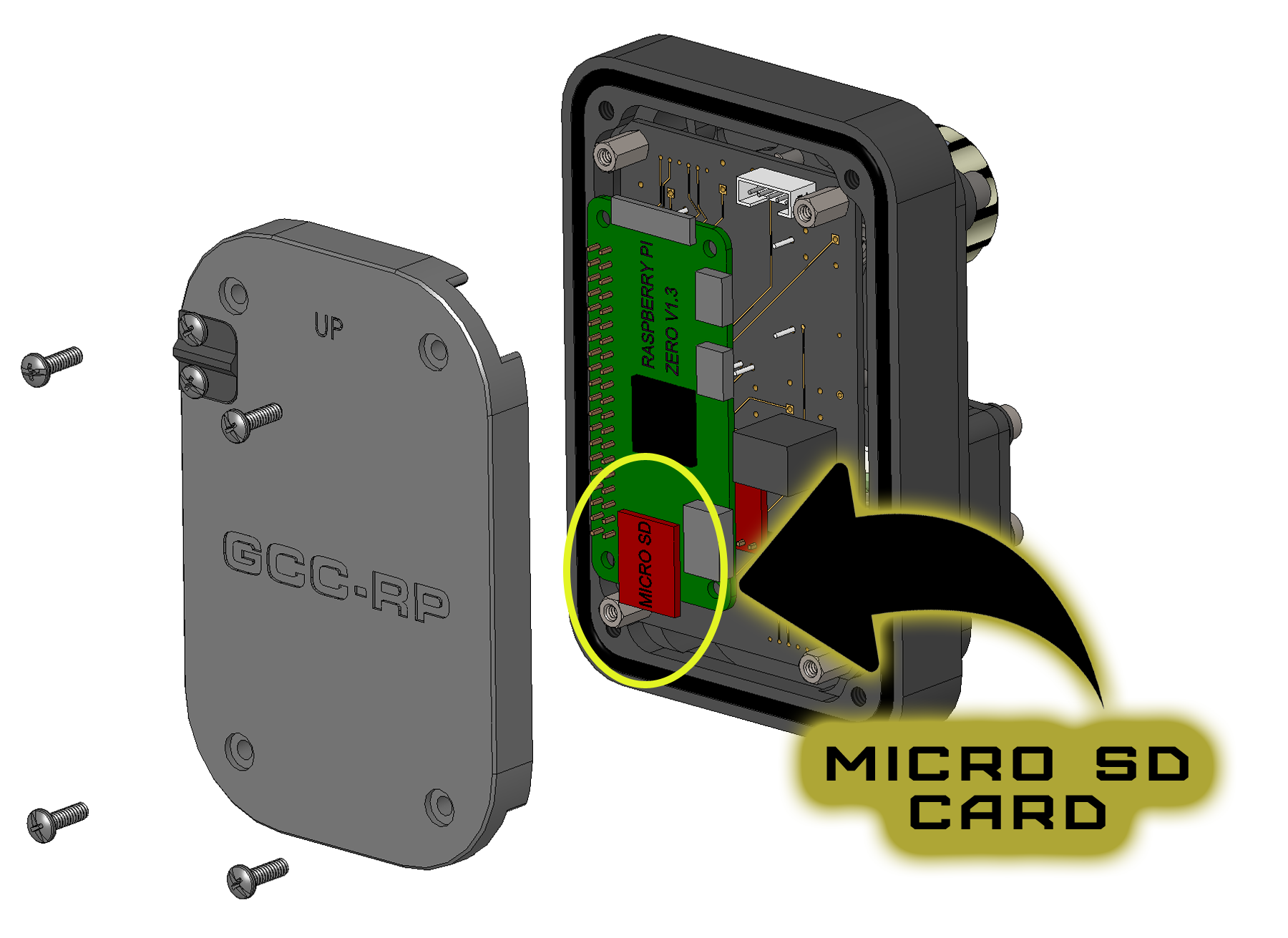
The micro SD card is located behind a removable cover, inside the rear shell of ML-105 Housing. Remove 4 screws with the tool provided in your kit, and slide the micro SD card out from it's carrier.

Step 2: Connect micro SD card to your computer.
Using a micro SD card reader, connect and look for the micro SD card as an external drive labeled " boot".
Step 3: Download GCC update.
Save the file to a location you can find later. It must be a local drive, not cloud or network.
Download Link: GCC DK-X Revision V1.15
Release Date: 5-2024
Release Notes: Feature improvements. Each GCC button can now be assigned two functions. One for short press, another for long press.
GCC Keymap for this release
Step 4: Download and install belenaEtcher
balenaEtcher is a utility program required to write GCC to the micro SD card.
Step 5: Launch balenaEtcher and update GCC.
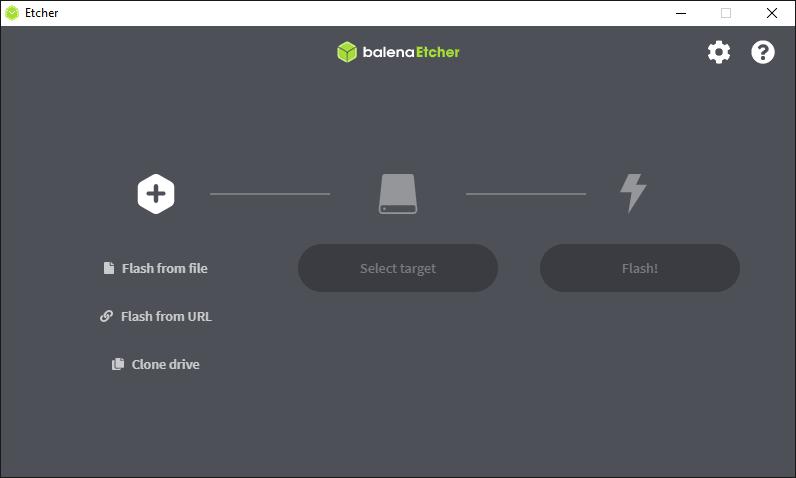
balenaEtcher will look like this. Click 'Flash from File' and locate the downloaded GCC update file (*.img) from Step 3. Select Target is the micro SD card. Flash!
The update process will take a minute or two. When complete, Close balenaEtcher and safely eject the micro SD card from your computer.
Step 6: Re-install micro SD card to GCC and test.
Reverse the process from Step 1, installing the micro SD card into GCC and securing the cover in place.
Connect camera and batteries power on the system, and verify GCC is operational. The standby display will show you the update revision to confirm successful install.
Contact Gates with support questions.